
Description
1. The cause:
I saw that you have chosen the “Focus_NextBar” option for your Sell order.
In the mechanism of NinjaTrader, they do not let us know “when” the last tick of the current bar shows. We can only get the first tick of the next bar.
Here’s the flow: The current bar closes → the first tick of the next bar appears → EOB Ordering immediately calls ChartTrader to place a limit order → there is a minor gap between the moment the first tick appears & when the order is placed → if the market moves fast, the gap will be bigger and cause slippage → the order will be delayed at least 1 tick (more if the market move quick).
If we knew when is the last tick of the previous bar, we would be able to eliminate the gap and improve the precision. However, we can’t because of the limitation of the platform.
2. The solutions:
We offer 2 ways to deal with this situation:
– Using the Market Order instead if you can accept the slippage.
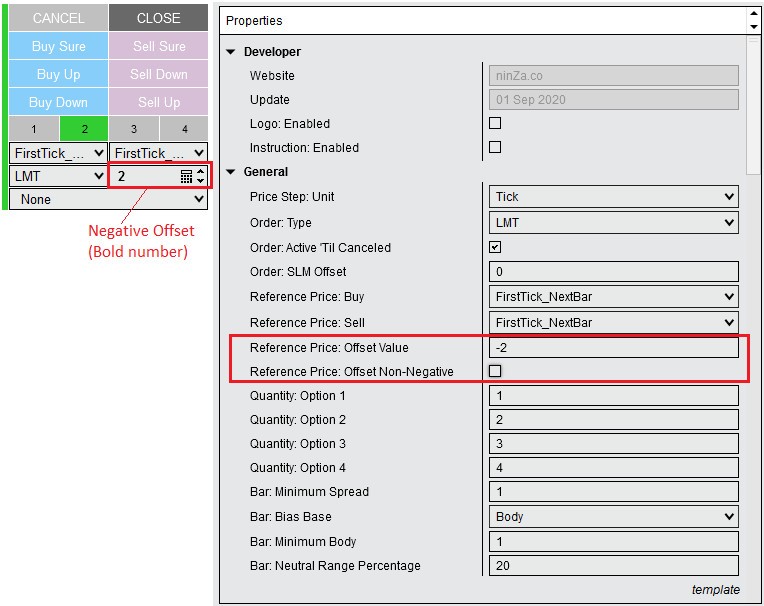
– We have a feature called “Negative offset”. In the indicator setting, you can set the negative number of “Reference Price: Offset Value” (recommend is 1-2 ticks), uncheck “Reference Price: Offset Non-Negative”. Doing that will move the LMT order lower a little bit (compared to the price of the first tick) so it ensures the order to be filled.
Q: Explain to me how if I have this set to bar close, limit, with ZERO offset, my entry can be 1 tick above/below the close?
A: If you want to use the LMT order and your entry is placeed at 1 tick above, you must set the value of the “Reference Price: Offset” to a negative number that should be -1 (or -2, -3… if the order is hard to place).
The LMT Order does not guarantee execution but guarantees the price (equal or better than the price you specify).
If the price retrace to the limit price, the LMT order can be placed.
For more information about Limit Order, please follow the link below:
https://www.investopedia.com/terms/l/limitorder.asp
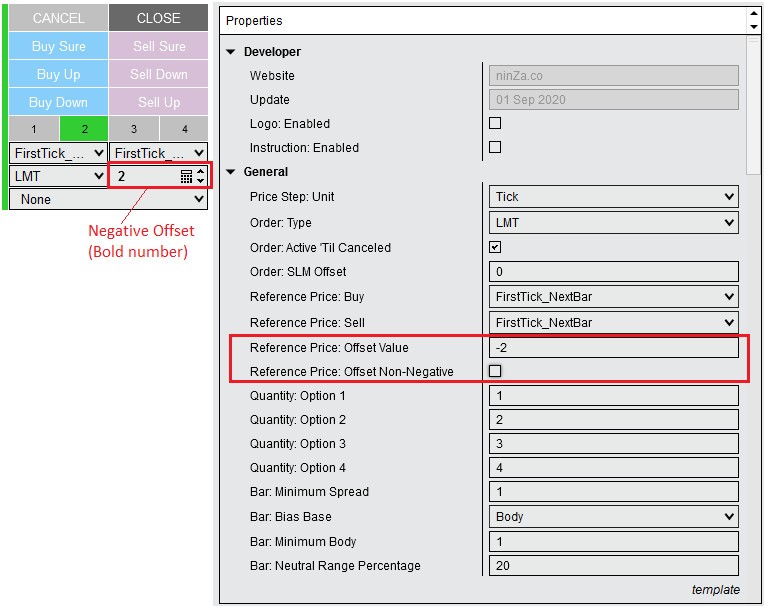
To set a negative number for the “Reference Price: Offset”, please refer to the picture below:
Q: I’m not asking how to do it I am asking why my actual order was placed 1 tick below the close price when I have LMT orders with offset of 0? You just said you guarantee me the price yet I did not get the price associated with the close of the bar?
A: Our EOB Ordering does not execute the order. It only sends the command to NT8 to execute the order at the reference price
Suppose you place sell LMT at 13219.
Then the LMT order can be filled at any price that is 13219 or Higher. This is the nature of the LMT order.
NT8 handles this to ensure the nature of the LMT order is correct.
If you want to sell at 13219 and the LMT order brings you in at 13220 (short position) you are more profitable, right?
This is the nature of LMT order: not guarantee execution but guarantee the price (equal or better than the price you specify)
==========================================
Q: I do not know what “Order: SLM Offset” → The offset of Stop-Limit orders” refers to. The offset is used to accomplish what?
A: Stop Limit Order (SLM) is a Stop order that immediately becomes a Limit order when the Stop order is triggered. So you need to define the Stop price and the Limit price. The distance between the Stop price and the Limit price is SLM offset (in Ticks).
For example: If you set SLM Offset = 0, both the Stop price and the Limit price are the same.
==========================================
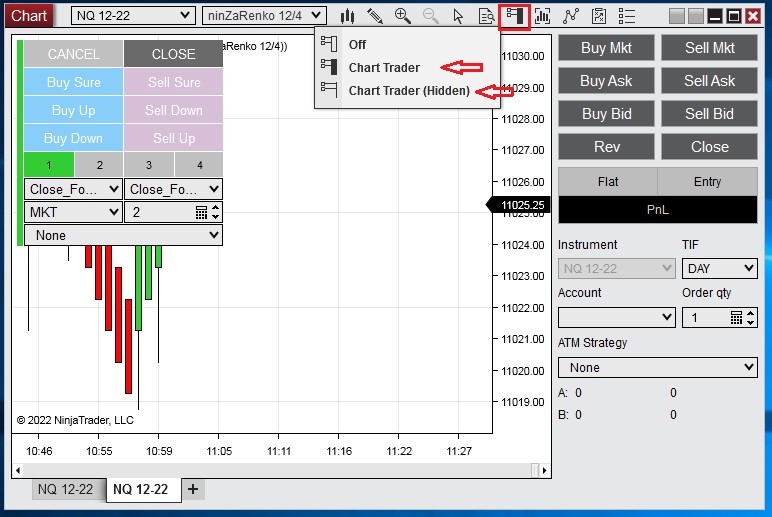
Q: I have installed EOB Ordering – and checked all the videos. However I can place an Order but this order is not executed: I am using the SIM account and the ATM has been deactivated. So, there seems to be one configuration missing??
A: Please turn on Chart Trader or choose the hidden option for the Chart Trader. (see the picture below)
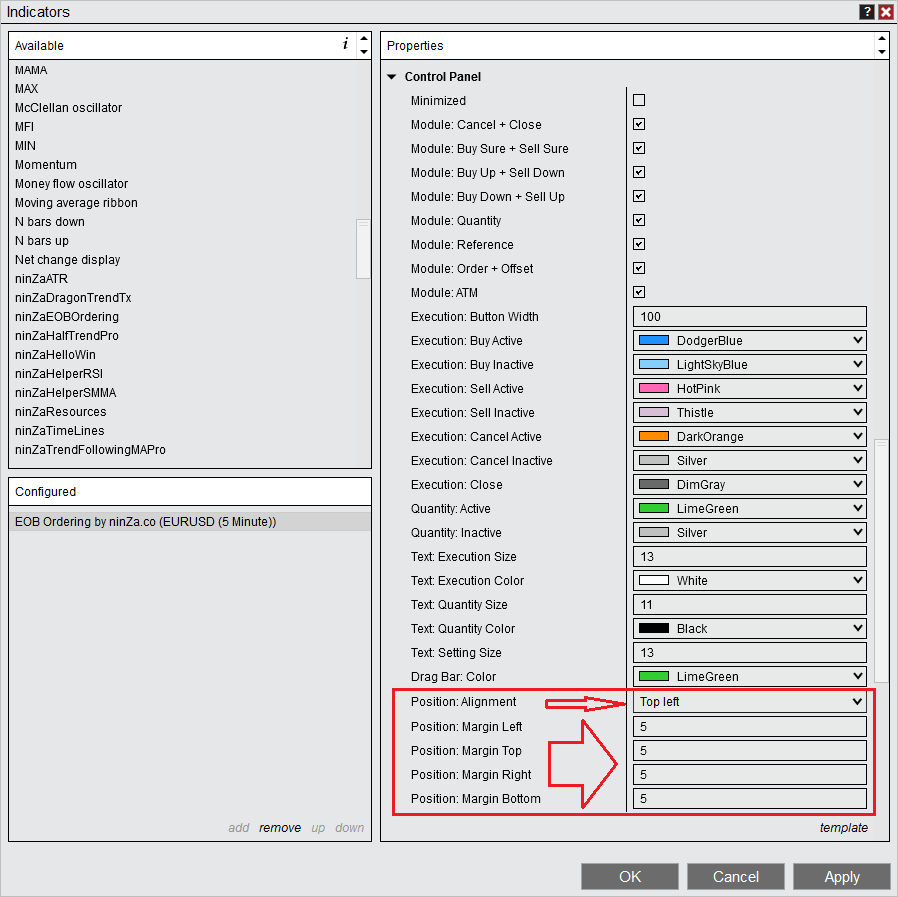
Q: EOB not show on chart?
When I have an entire NT screen spanning the entire width of my monitor, it works fine but as soon as I decrease the width of the NT window to half of my monitor, it disappears. How to fix this?
A: Please change the value of the properties in the Control Panel section as shown in the picture below:
Position: Alignment ➜ Left
Position: Margin Left ➜ 5
Position: Margin Top ➜ 5
Position: Margin Right ➜ 5
Position: Margin Bottom ➜ 5
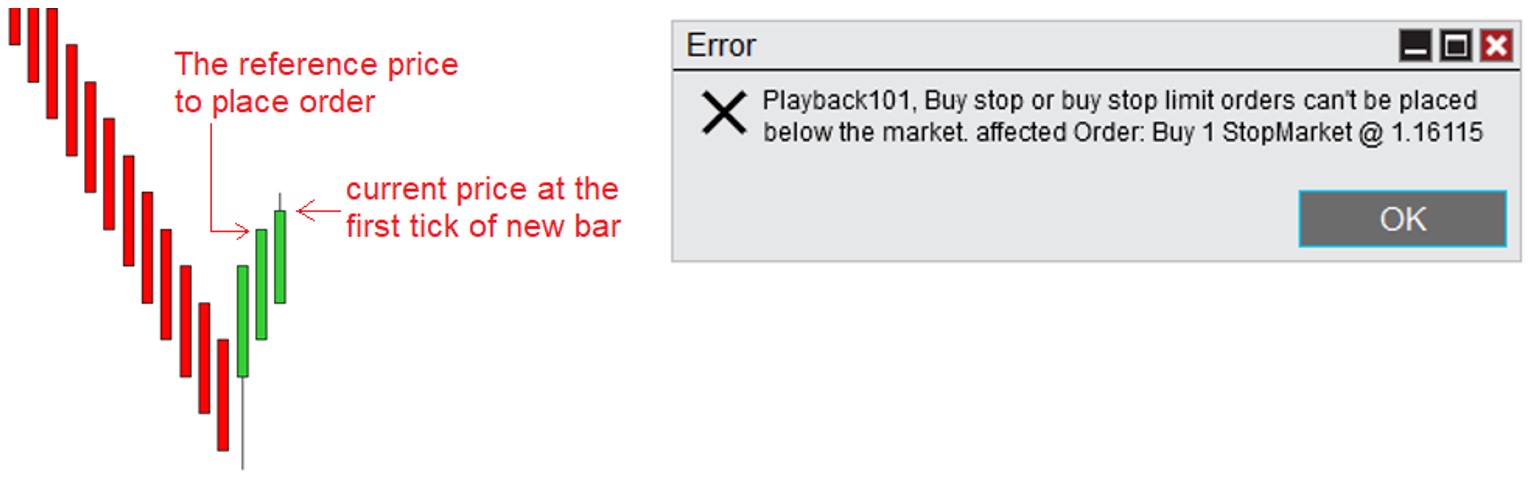
Q: Quite often I miss trades because on the closing bar a lot of the time i’m getting an error that says something about the price is below the current price. Do you have any suggestions on how I can make sure my entries are executed? also, next week I will take a screenshot of the error i’m getting.
A: This error message is explanted as below:
When the current bar is moving, EOB Ordering will take the reference price.
When the first tick of a new bar opens (the current bar has just ended), EOB Ordering will send the command to NT8 to execute the order at the reference price. The process of sending and executing the order will take a small time.
In fast-moving markets, during the time when NT8 receives and places the order, the market has moved too far from the reference price, so we will receive that error message, which means the order price is behind the market price, hence the order rejection.
This problem cannot be resolved 100% because of the platform’s limitation. NT8 does not offer a solution to identify the last tick of the current bar. Only after the first tick of a new bar opens can we know that the current bar has just ended, hence the latency.
You can increase the value of the Offset to relieve the situation.
==========================================
Q: If you set EOB for “trend following” or trend direction, whichever it said, it will change from long to short or vice versa automatically? Or use ATM for target loss and stay armed for next bar color change?
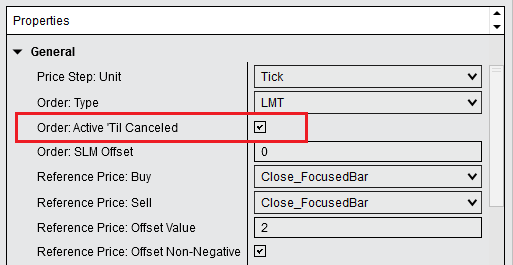
A: Our EOB Ordering has the feature “Active ‘Til Canceled”. If this option is checked, an EOB order will automatically be carried to new bars, until either you manually cancel it or it is executed. If this option is unchecked (default), an EOB order will only be valid for the current bar.
Suppose the market (ninZaRenko chart) is trending up with a series of green bars, and you would like to automatically enter short just after the first red bar appears (trend reversal). This is NOT an easy task for humans, because the market moves so fast. Let EOB Ordering do the hard work for you! All you have to do is to enable “Active ‘Til Canceled” in the settings, then click the “Sell Down” button, and then… relax or do anything you want. From that on, our super tool will monitor bar bias from bar to bar and automatically place a SELL order on the first red bar’s close.

==========================================
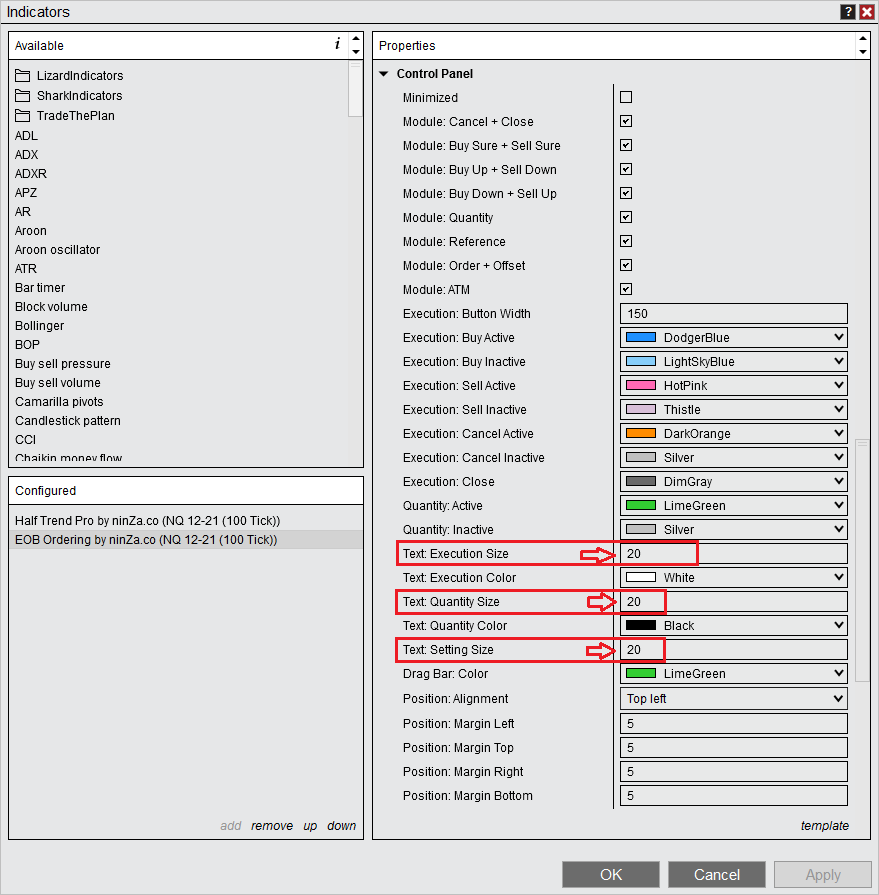
Q: How to change the text size in the EOB tool
A: Please change the value of the parameters below to changr the font size of the controls:
* Text: Execution Size
* Text: Quantity Size
* Text: Setting Size
==========================================
Q: How does the “Close” button work? Is it the same as Ninjatrader’s chart trader’s “Close”?
Or is it to close my open position?
How do I close my open position if Ninzarenko change colour? Do I just buy up or sell down in the same size, and it closes the position?
Then what does the close button do?
A: Yes, just buy up or sell down in the same size, and it closes the position.
Regarding the Close button, it is exactly the same as Chart Trader’s: it closes all open positions and cancels all pending orders.
Q: I’m currently experiencing some strange with the EOB indicator. Please attached video. I’m on the latest version of EOB and noticed this while I’m in Playback Mode in NT. I did not recall this happening while LIVE. Please advise. Thanks!

A: Currently, you use 2 instances of EOB Ordering on the same chart. They have different ATM templates selected. Therefore, it’s not possible for the quantity to be determined: whether the quantity should be 1 as instructed by instance #1, or 2 as instructed by instance #2 → it just rotates between 1 and 2.
Can you please remove 1 instance of EOB and test again?
Please let us know if the issue occurs when you have only 1 instance of EOB Ordering on your chart???
This problem can happen randomly if you use 2 instances.
By design, we just support only 1 instance of EOB Ordering.
So, your use of 2 instances is special and not recommended.
Also, please update your NT8 platform to the latest version and try again.
Link to download: https://ninjatrader.com//PlatformDirect
==========================================
Q: When selecting a quantity in your program, it changes the ATM quantity, however, when changing the strategy in Chart Trader, it doesn’t change in the ATM.
When placing the trade, the quantity is as I selected it, but the strategy is from the ATM, not your program. Is there something that I needed to check in the indicator’s parameters but missed?
A: When the ATM module is enabled, ATM strategy selection in Chart Trader is ignored. You must select the ATM in our tool (not on Chart Trader). If you want to change the ATM on ChartTrader, please disable “Module: ATM” in the indicator settings (Control Panel region).
Also, the ATM module in our tool is intended for selection only; please create, edit, and delete ATM strategies in Chart Trader.
After you create, edit, and delete ATM strategies in Chart Trader, you must refresh your chart for EOB Ordering to synchronize the indices.
==========================================
Q: EOB Ordering Can it be set to enter order when close is above the previous bar?
A: Please enable the Price Action mode in the indicator settings.
Below are details about this mode:
The “Price Action” mode:
* Price Action: Enable ➜ Enable/disable this mode by checking/unchecking this box.
* Price Action: Range Monitored ➜ You can choose between “PreviousBarBody” & “PreviousBarSpread”.
* Price Action: Range Offset (Tick) ➜ The offset of the range. (let’s call it is “X”)
(see the picture below → Picture 2)
The order is only placed when matching the conditions below:
The CLOSE of the current bar must be at least X ticks beyond the previous bar’s OPEN/CLOSE (PreviousBarBody is selected) or HIGH/LOW (PreviousBarSpread is selected).
==========================================
Q: So you’re saying that If I use Ninjatrader Chart Trader I can use the ATM Strategy Selection Mode of “Keep Selected ATM Strategy Template on Order Submission” but if I use EOB Ordering I can not.
In other words, EOB Ordering doesn’t allow me to add contracts to my position and keep the same targets and stops.
If so, this surprises me and is a real disappointment.
If Chart Trader allows it, why does EOB Ordering not allow it. I don’t understand.
Answer:
Please follow the instructions below to change the parameters of EOB Ordering, which will meet your trading needs.
1. Please uncheck the “Module: ATM” to make EOB Ordering using the ATM templates of Chart Trader.
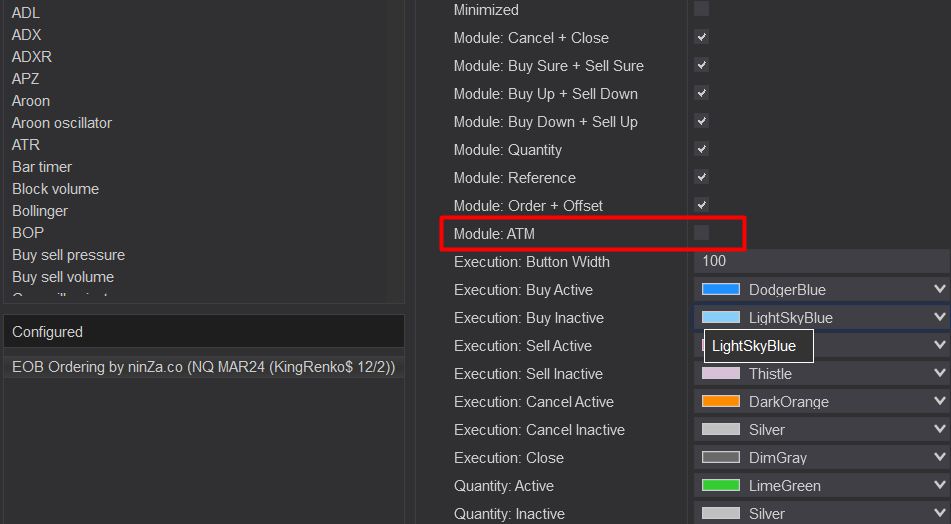
2. Right-click and choose the parameters for the Chart Trader as shown in the picture below.
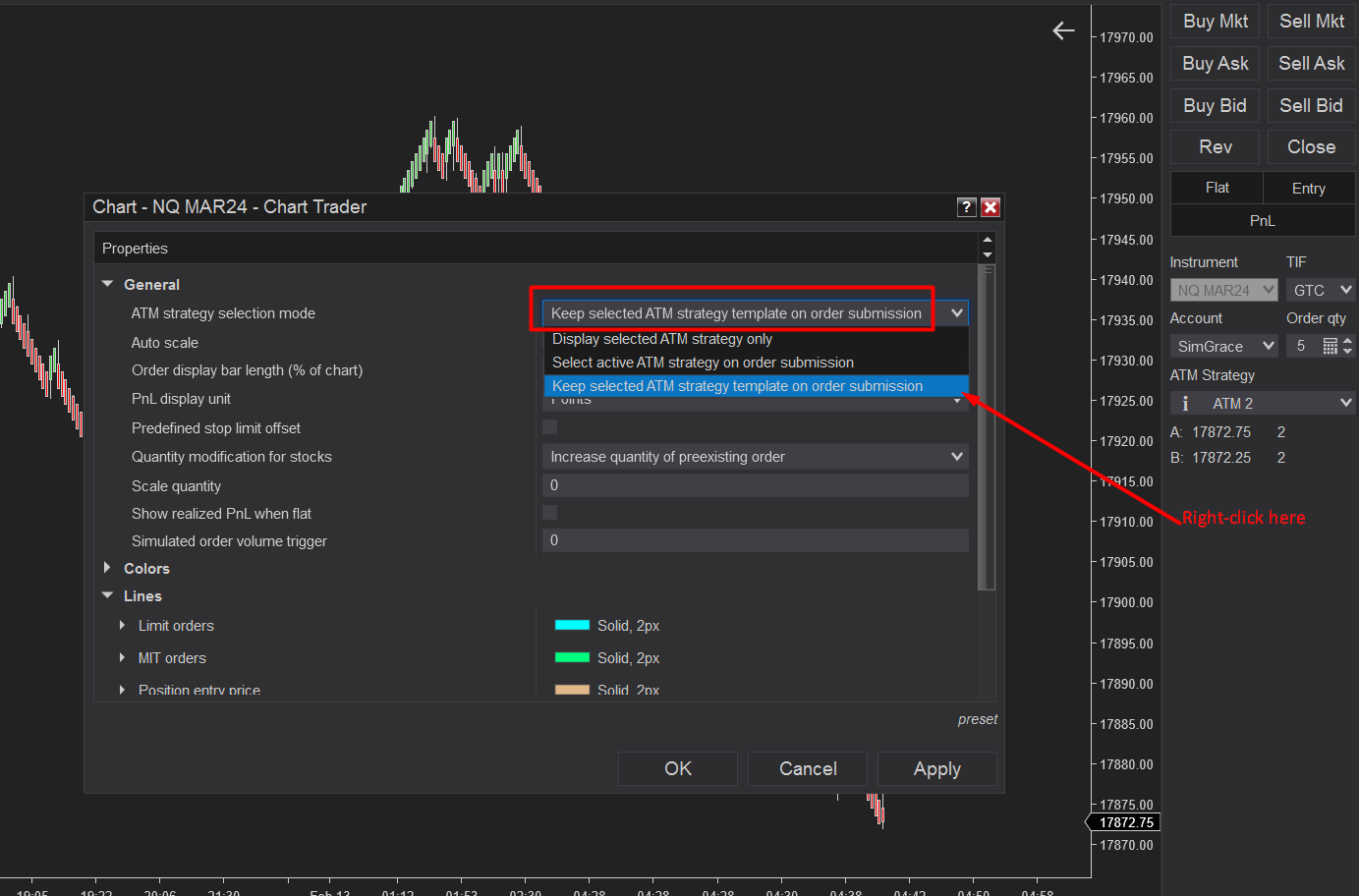
You can refer to this link to get detailed instructions:
→ https://ninjatrader.com/support/helpGuides/nt8/NT%20HelpGuide%20English.html?properties3.




Reviews
There are no reviews yet.